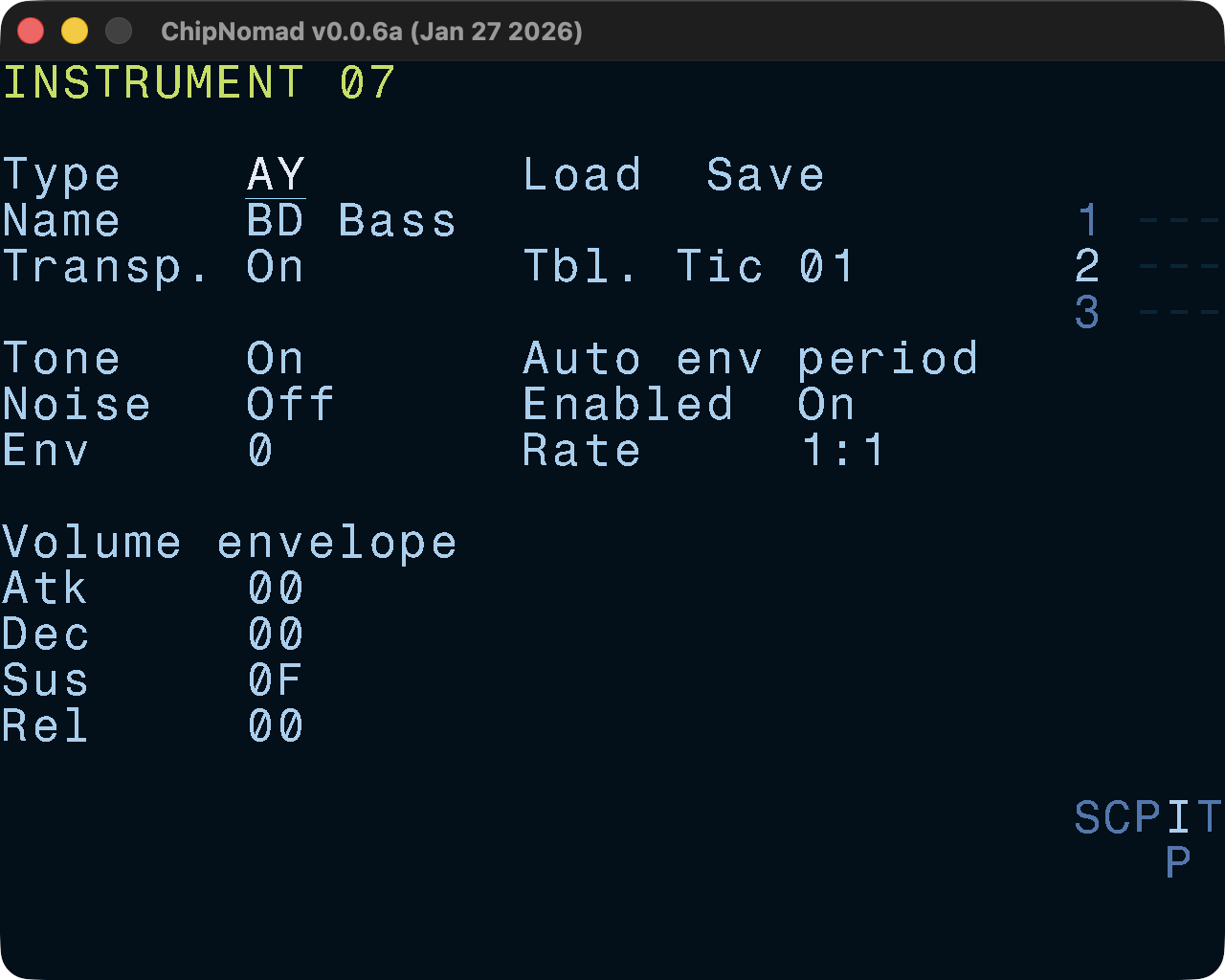
Instrument Screens
Instrument Editor

All instruments have a few common parameters:
- Instrument type (currently None or AY)
- Name (up to 15 characters)
- Default table speed (ticks per table row)
- Transpose enable/disable
Each instrument has a corresponding default table which has the same number (00-7F range). While you can use tables in 00-7F range as aux tables, it is not recommended to do so for simplicity. Tables are the main sound design tools in ChipNomad.
AY Instrument parameters
In addition to common instrument parameters, AY instruments have these parameters:
- Mixer: tone on/off, noise on/off, envelope shape (0-F)
- Volume ADSR envelope (software generated)
- Auto envelope period settings: enabled/disabled, rate (1:1 - F:F)
AY-3-8910/YM2149F chip can produce only square waves. Tone sound can be mixed with 1-bit noise using logical AND. The chip doesn’t have hardware ADSR envelopes so they’re generated in software. AY has a primitive volume envelope generator which is rarely used for its original purpose. Usually, periodic envelope shapes (8, A, C, E) of the generator are used to create non-square bass sounds by pushing the envelope period to audio rates. Auto envelope settings control the envelope period. In the Atari ST world, the sound of periodic envelope shapes is known as “buzzer”.
A couple of things to try:
- Disable both tone and noise, set env shape to 8 (saw). Enable auto envelope and set rate to 2:1. You’ve got a nice thick bass sound.
- Enable tone, disable noise, set env shape to E. Enable auto envelope and set rate to 2:1. You’ve got a classic “flowing” AY env bass sound. Experiment with rate values, you can get some interesting sounds, especially when rates are not powers of 2 (e.g. 1:3). Enabling both tone and envelope creates ring modulation between the tone square wave and the wave from the envelope generator. The “flowing” effect is created by the difference in tuning precision — envelope period control is less precise.
Controls
- OPT + [LEFT or RIGHT]: navigate between instruments:
- EDIT + PLAY: preview instrument:
- SHIFT + OPT: copy instrument
- SHIFT + EDIT: paste instrument
Instrument Pool

This is a convenient screen where you can see all project instruments and reorder them. Also, during playback you can see instruments that are currently playing.
Controls
- EDIT: edit instrument (jumps to Instrument screen)
- SHIFT + OPT: copy instrument
- SHIFT + EDIT: paste instrument
- EDIT + [UP or DOWN]: reorder instruments
- EDIT + PLAY: preview instrument